Convert YouTube Audio to MP3: Free Guide & Easy Steps
Ever been watching a video on YouTube — a podcast clip, a live performance, an interview — and thought, "I just want the audio from this, not the whole video file"? You're far from the only one. Whether it's for offline listening, building a personal audio library, or just freeing up storage space, knowing how to convert YouTube audio to MP3 is a genuinely useful skill.
This guide walks through exactly how to do it, the tools that actually work well in 2026, what to watch out for, and the small details that make the difference between a smooth conversion and a frustrating one. No technical background required — just clear, practical steps.
What Does It Mean to Convert YouTube Audio?
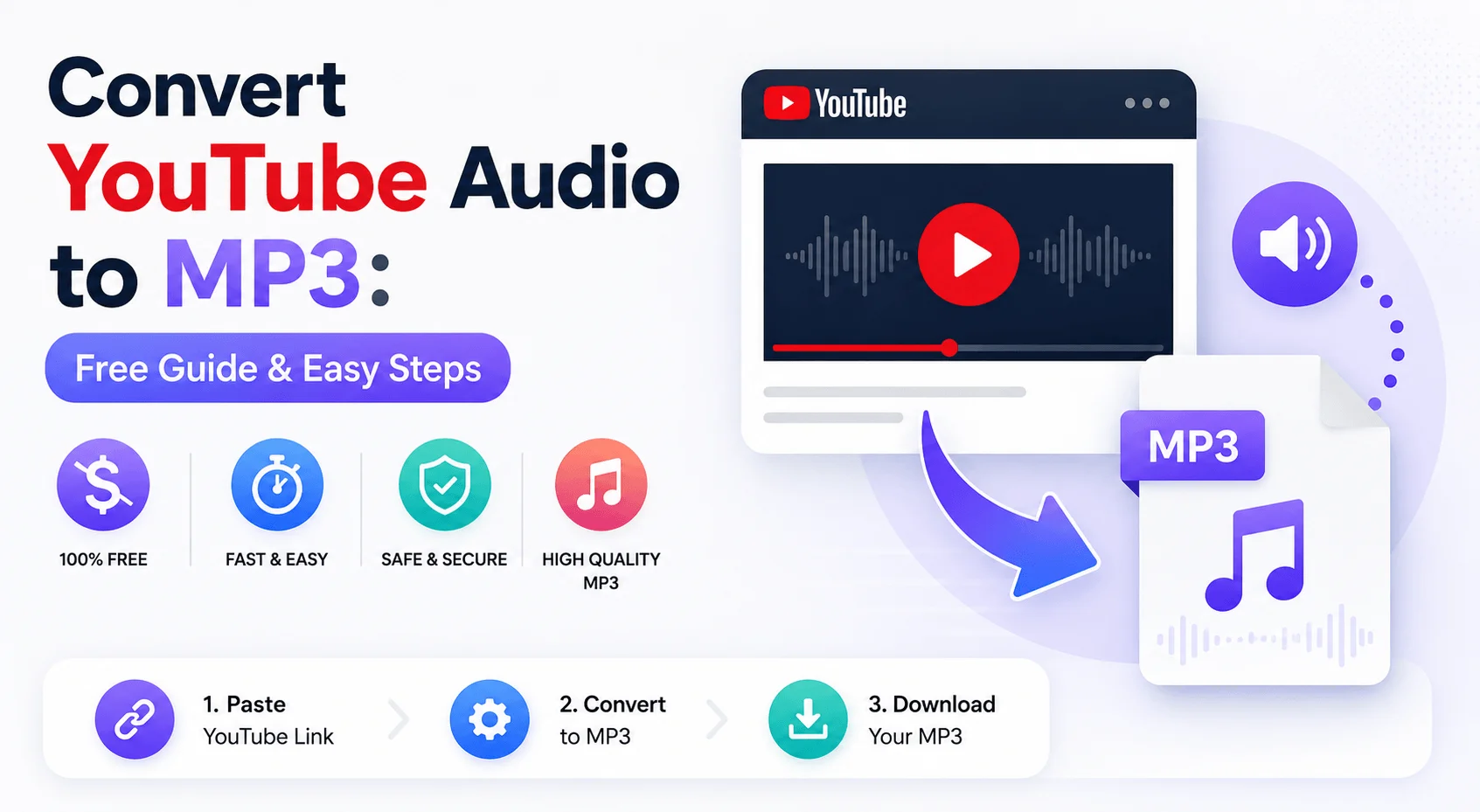
When you convert YouTube audio, you're essentially extracting just the sound portion of a video and saving it as a standalone audio file — most commonly in MP3 format, since it's universally supported across devices, music players, and car stereos.
This is different from downloading the full video. A typical YouTube video file includes both video and audio data, which makes it considerably larger. If all you want is the sound — a song, a lecture, a podcast segment — converting to audio-only format gives you a much smaller, more practical file.
People use this for all kinds of reasons: saving a favorite acoustic cover, archiving an interview for later listening, pulling audio from a tutorial to listen to during a commute, or building offline playlists from content that isn't available through traditional music streaming platforms.
Is It Legal to Convert YouTube to Audio?
This question deserves a straightforward answer rather than a vague disclaimer.
YouTube's Terms of Service generally don't permit downloading content unless the platform itself provides that option, such as through YouTube Premium's offline feature. Most videos — and the audio within them — are protected by copyright belonging to the creator, artist, or label.
That said, there are scenarios where converting YouTube audio sits on much safer legal ground:
The content is Creative Commons licensed or explicitly marked as free to download by the uploader.
You created the content yourself and are extracting audio from your own video.
You're using YouTube Premium's built-in offline download feature, which is fully legal for personal use within the app.
Outside of those situations, the responsible approach is to treat YouTube audio converter tools as something for personal, non-commercial use — not for redistributing or monetizing downloaded content. This guide is meant to help you do this thoughtfully and isn't an endorsement of bypassing copyright protections.
How to Convert YouTube Audio to MP3: Step-by-Step Methods
There are several practical ways to extract audio from YouTube, and the right one depends on how often you do this and what device you're using.
Method 1: Online YouTube Audio Converter Tools
This is the most common approach because it doesn't require installing anything. You paste a video link into a website, and the tool processes it into an MP3 file you can download directly.
Typical steps:
Find the YouTube video and copy its URL from the address bar.
Open a reliable online YouTube audio converter in your browser.
Paste the link into the conversion box.
Choose MP3 as your output format, along with a bitrate if the tool offers options.
Start the conversion and download the finished file once it's processed.
Pros: Works on any device with a browser, no installation needed, usually free for personal use.
Cons: Quality and reliability vary a lot between tools, and some sites are weighed down with ads or confusing download buttons.
If you're looking for a straightforward option to try, ytcliptune is a browser-based tool designed for exactly this kind of audio extraction. It follows the same simple process — paste the link, select MP3, download — without needing an account, which makes it a reasonable first stop if you haven't tried a converter before.
Method 2: Browser Extensions for Audio Extraction
For people who convert YouTube audio frequently, a browser extension can save time by adding a direct download option underneath videos, skipping the copy-paste step entirely.
A few things worth checking before installing one:
Only download extensions from official stores like the Chrome Web Store or Firefox Add-ons.
Review the permissions it asks for — anything requesting more access than seems necessary is worth skipping.
Be prepared to switch extensions occasionally, since browser updates sometimes break older ones.
Method 3: Desktop Software for Batch Conversion
If you're regularly extracting audio from multiple videos — say, archiving a whole series of interviews or lectures — desktop software can offer more control than a one-at-a-time website tool. Many programs let you queue multiple links, adjust output quality, and manage your files in one place.
The trade-off is that you're installing something on your computer, so it's worth sticking to established, well-reviewed software rather than obscure downloads from unfamiliar sites.
Method 4: Mobile Apps for On-the-Go Conversion
On phones, there are apps built to function as a YouTube audio downloader, often with a simple built-in player so you can listen immediately after converting. These work well if most of your listening happens directly on your device.
Worth noting: app store policies around this kind of tool have gotten stricter, so genuinely reliable apps are less common than they used to be. Check recent reviews and update dates before installing anything that seems to have been abandoned by its developer.
Choosing the Right Tool to Convert YouTube to Audio
With so many converters out there, picking a trustworthy one matters more than people often realize. Here's what separates a good tool from a frustrating one.
Prioritize Secure, Ad-Light Websites
Look for a secure connection (the padlock in your browser bar) and a clean layout. If a page is covered in pop-ups or has multiple buttons all labeled "Download," that's usually a sign to find a different tool — some of those buttons are ads, not the actual conversion link.
Check the Available Audio Quality Settings
Better converters let you pick your output bitrate. For casual listening, 128kbps is generally fine. If sound quality matters more to you, look for options up to 256kbps or 320kbps, which tend to sound noticeably fuller.
Skip Tools That Push Unnecessary Installs
If a website insists you install a plugin or "helper app" just to convert a single track, that's usually an unnecessary step — and sometimes a red flag. Most legitimate online converters handle everything within the browser.
Read Recent Reviews Before Committing
A quick search for recent feedback can save a lot of wasted time. Converter tools change frequently — some get more cluttered with ads over time, others stop working altogether — so recent reviews are more reliable than older praise.
Run a Quick Test First
Before converting something long, try a short clip first to check the output quality and make sure the file plays correctly. It's a small step that saves time if something doesn't work as expected.
Tips for a Smoother Audio Conversion Experience
A handful of small habits make a noticeable difference:
Stick to a stable connection. An interrupted connection during conversion can lead to incomplete or glitchy audio files.
Listen through the file before deleting anything. Always play back the converted MP3 to confirm it sounds right before clearing your browser history or the original tab.
Keep your files organized. Create a dedicated folder for converted audio, and rename files clearly (artist, title, or topic) so your collection stays easy to navigate.
Bookmark a couple of backup tools. Since converter websites occasionally go offline or change their features, having two or three reliable options on hand prevents you from scrambling when your usual go-to isn't working.
Common Mistakes When You Convert YouTube Audio to MP3
Even experienced users run into a few recurring issues:
Clicking a fake download button. Many free converter sites run ads designed to mimic the real download button. Always double-check that the file size and format match what you expect before clicking.
Overlooking file size inconsistencies. A 4-minute video that converts into a suspiciously tiny or oversized file usually means something didn't process correctly.
Handing over personal details for a free tool. A legitimate, free YouTube audio converter shouldn't require your email or payment information just to extract one audio file.
Losing track of copyright boundaries. It's easy to convert more content than intended — pause occasionally to consider whether what you're downloading is meant for personal use only.
Frequently Asked Questions
What's the best way to convert YouTube audio to MP3 for free?
The simplest free method is using a browser-based online converter — paste the video link, select MP3 as the output, and download the file. No installation is required, and most tools process the conversion within a minute or two depending on the video length.
Can I extract audio from YouTube without losing sound quality?
Audio quality depends on both the original source and your chosen output bitrate. Selecting a higher bitrate, such as 256kbps or 320kbps, typically produces a fuller, clearer sound that's close to the original upload quality.
Do I need special software to convert YouTube to audio?
Not usually. Most people rely on browser-based tools that require no downloads. Desktop software is only worth considering if you're converting large batches of audio regularly and want more control over file management.
How long does it take to convert a YouTube video to audio?
This depends on the converter and the length of the video, but most online tools process a typical 3-5 minute video within seconds to a couple of minutes. Longer videos, like full podcasts or lectures, may take a bit more time.
Is it safe to use online tools to download YouTube audio?
Many are safe when chosen carefully. Stick to sites with secure connections, minimal ads, and recent positive reviews. Avoid converters that ask for unnecessary personal information or push you toward installing unfamiliar software.
Final Thoughts
Learning to convert YouTube audio to MP3 doesn't have to involve guesswork or sketchy websites. With a reliable tool, the right output settings, and a bit of awareness around copyright boundaries, you can build a personal audio library that works the way you want it to — offline, ad-free, and compatible with whatever device you're using.